
Write the SOP by doing the work.
Naviscroll captures every click with a screenshot while you do the task, then hands you a finished standard operating procedure. No writing it up afterwards.
For anyone who keeps explaining the same process, in IT, onboarding, operations or finance.
Works with Google Chrome and Microsoft Edge. No account required, and your screenshots never leave your browser.
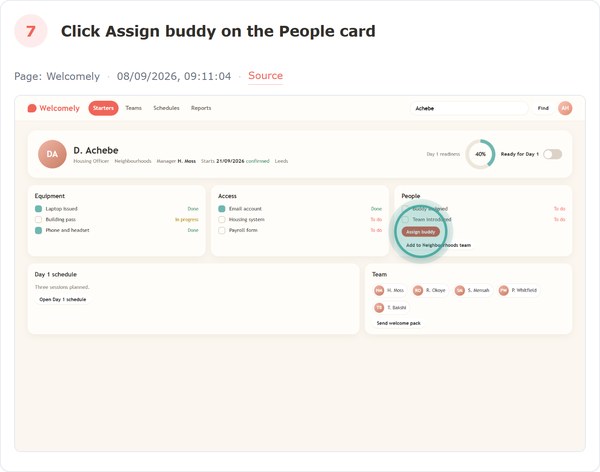
Six companies, six products, six finished documents
We built six demo applications, one for each kind of work, then used Naviscroll to record a real procedure in each. No two documents came out the same: they run from twelve steps to thirty-one, three carry redactions baked into the screenshots, and each is a single self-contained file. All of it was made in a browser tab, with nothing written up afterwards. The companies and the applications are invented; the documents are exactly what the extension exported.
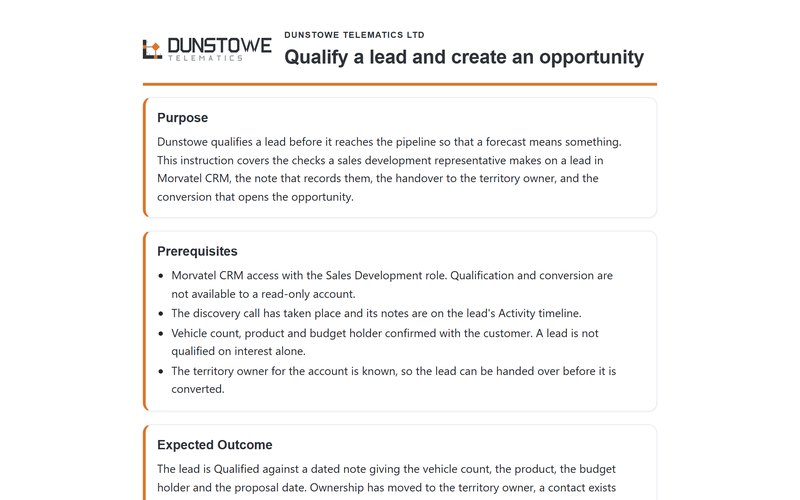 Qualify a Lead and Create an OpportunityDunstowe Telematics in Morvatel CRM20 steps · Vehicle telematicsOpen the document
 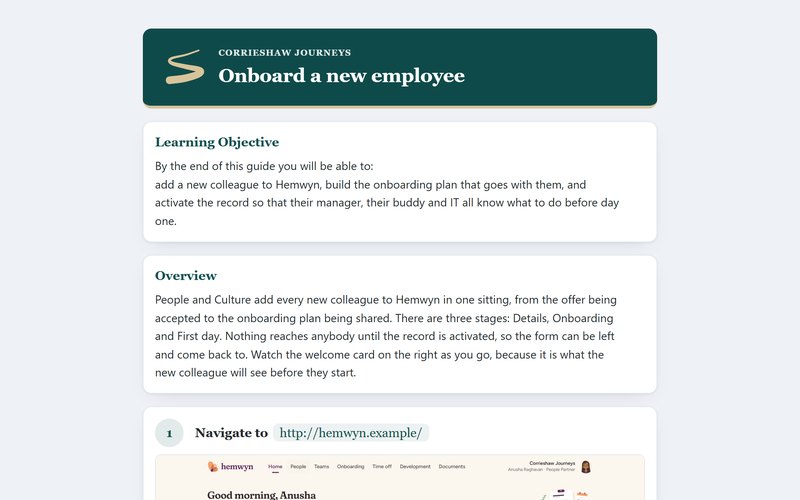 Onboard a New EmployeeCorrieshaw Journeys in Hemwyn26 steps · TravelOpen the document
 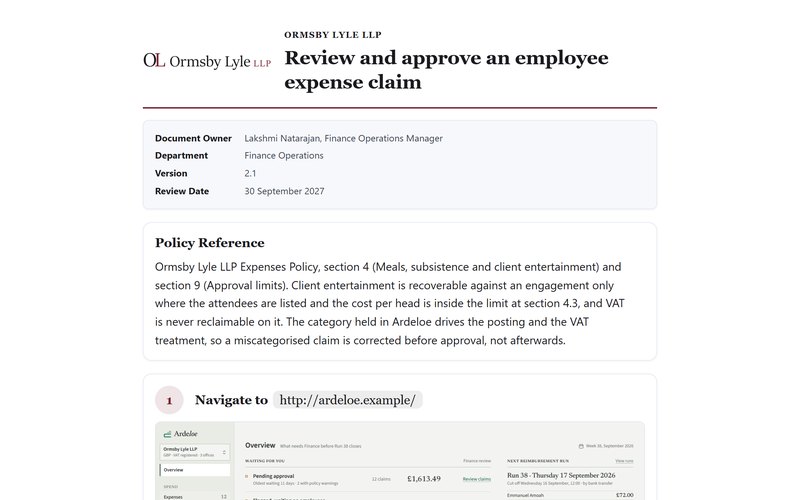 Review and Approve an Employee Expense ClaimOrmsby Lyle LLP in Ardeloe12 steps · Professional servicesOpen the document
 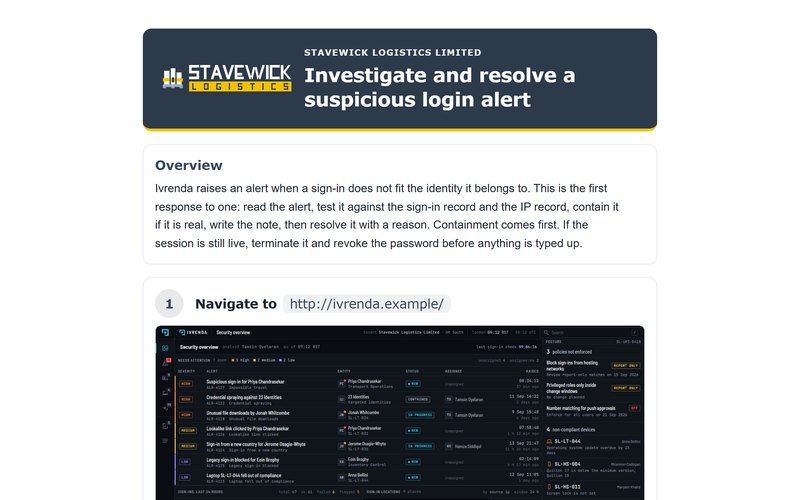 Investigate and Resolve a Suspicious Login AlertStavewick Logistics in Ivrenda18 steps · LogisticsOpen the document
 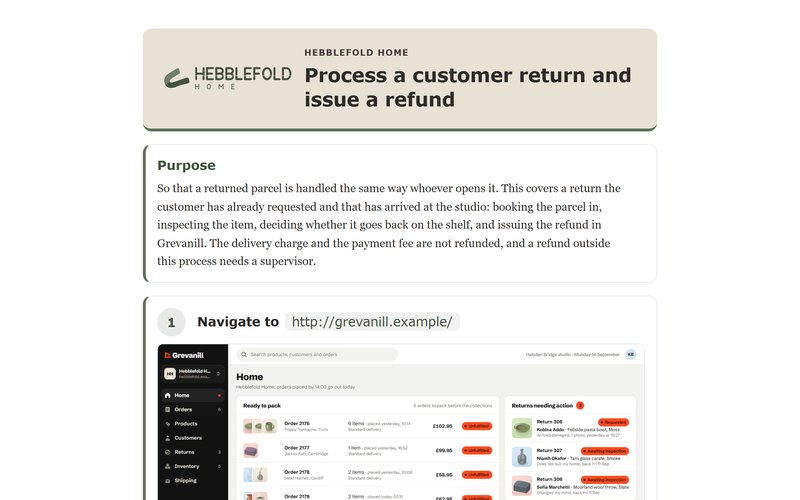 Process a Customer Return and Issue a RefundHebblefold Home in Grevanill13 steps · RetailOpen the document
 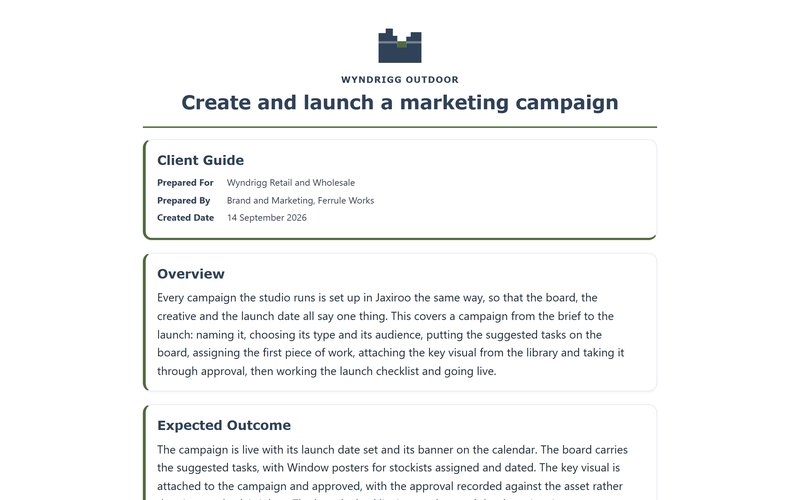 Create and Launch a Marketing CampaignWyndrigg Outdoor in Jaxiroo31 steps · Outdoor clothingOpen the document
 Do the task once. The record is the residue.
Capture as you work
Record a browser process naturally. Naviscroll lives in the browser's side panel; start it, do the task, stop it.
Naviscroll builds the procedure
Steps and screenshots are captured automatically, with a click marker at the point you clicked. Typed values are never recorded.
Make it yours
Edit the wording, mask sensitive information, apply a Style and a Template. What you edit is what you export.
Publish
Export a PDF, a self-contained HTML page, Markdown, or copy the text.
From one capture to a finished document
Capture
A side-panel recorder that captures clicks and form entries with before-click screenshots.
Procedures
One standard SOP per capture: numbered step cards you edit in place.
Masks
Likely-sensitive fields masked automatically, plus blocks or blurs you draw. Baked into the pixels.
Templates
Saved section setups (Purpose, Prerequisites, checklists) reused across documents.
Styles
Plain by default. Add your logo, colours and a header treatment when you want them.
Export
PDF, self-contained HTML, Markdown or Copy: four formats of the same document.
Your documentation stays under your control
Naviscroll is designed around a local-first, privacy-conscious architecture. Real procedures are captured against real accounts and real customers, so the product is built never to hold that data.
- Screenshots are stored in your browser and are never uploaded.
- Typed values are never stored: only that a field was filled in, never what you typed.
- Sensitive fields are masked, and masks are baked into exported images.
- There is no account and no server holding your library.
- AI drafting is off by default. When you opt in, only document text is sent, never screenshots.
Documenting knowledge should not take longer than doing the work itself, and nobody should have to explain the same thing twice.
Naviscroll was built from years of support and IT documentation work, where the same procedures were rewritten, re-screenshotted and re-explained because the last version had quietly gone stale. About Naviscroll
Start with the next thing you have to explain
Install Naviscroll, open the side panel, and capture it once.