
Features
Everything between a capture and a finished SOP
Capture, edit, organise and export, in one workspace, on your machine.
Capture
A recorder that lives in the side panel
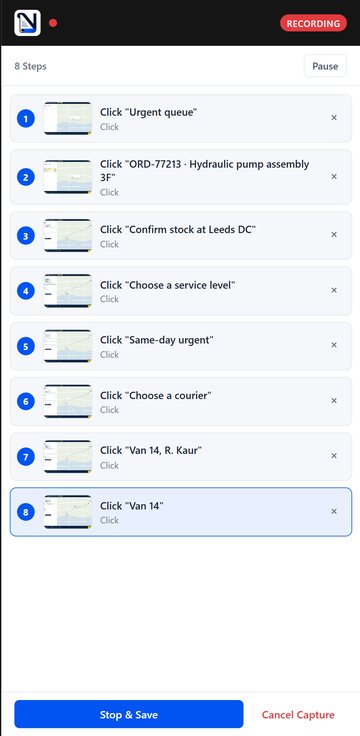
- Start and stop from Chrome's side panel; the web page is never covered.
- Before-click screenshots, so each step shows the page as it looked when you clicked.
- Pause to rename a step or move its marker without leaving the capture.
- Steps captured inside embedded forms carry their marker too.
Editor
What you edit is what you export
- Each step is a card: number, instruction, page and a screenshot with one consistent click marker.
- The document title, Purpose and optional sections are edited in the document itself.
- Frame each screenshot with a plus and a minus; the marker stays where you clicked.
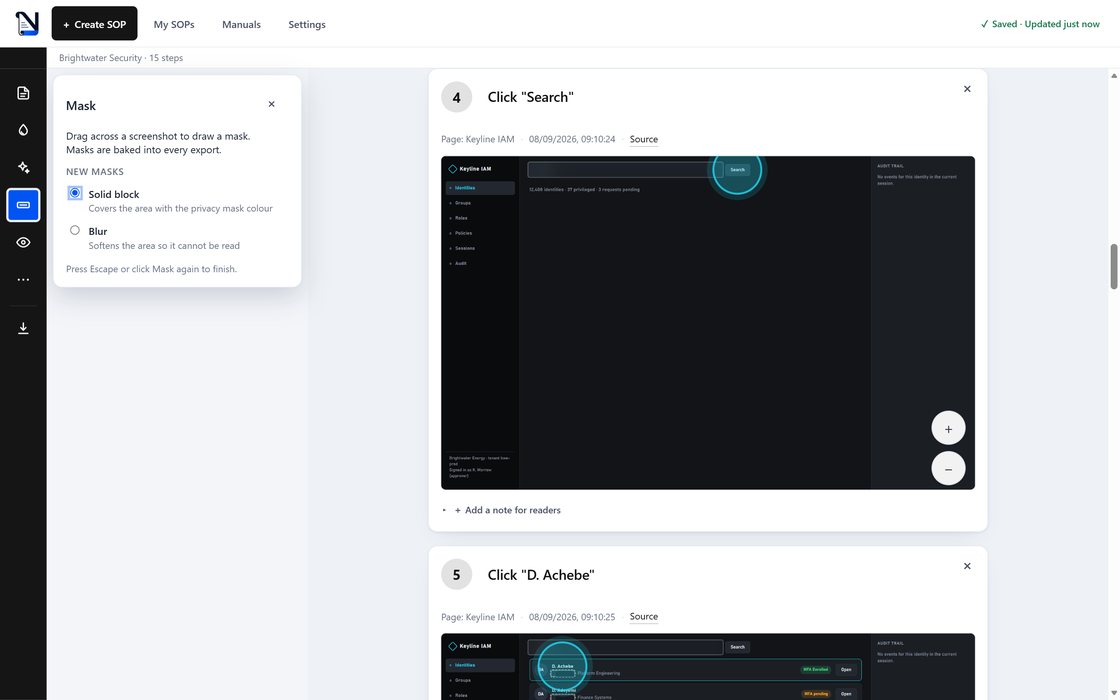
- Masks: automatic detection of likely-sensitive fields, plus solid or blurred masks you draw yourself.
Templates
Reusable section setups
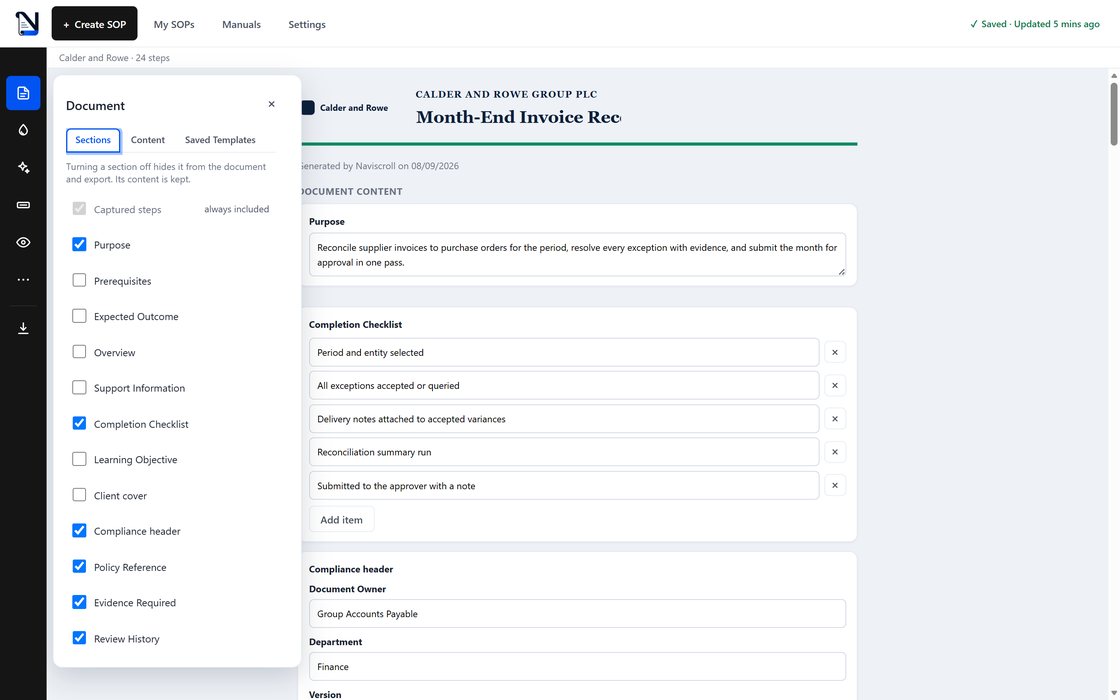
- Saved Templates keep a document's section setup (Purpose, Prerequisites, checklists) for reuse.
- A template is applied as a one-time copy, so editing it later cannot rewrite a document that already used it.
- Turning a section off hides it from the document and from every export, and keeps the text you wrote.
Styles
Plain by default, branded when you want
- Every new document starts plain: white page, dark text, your screenshots.
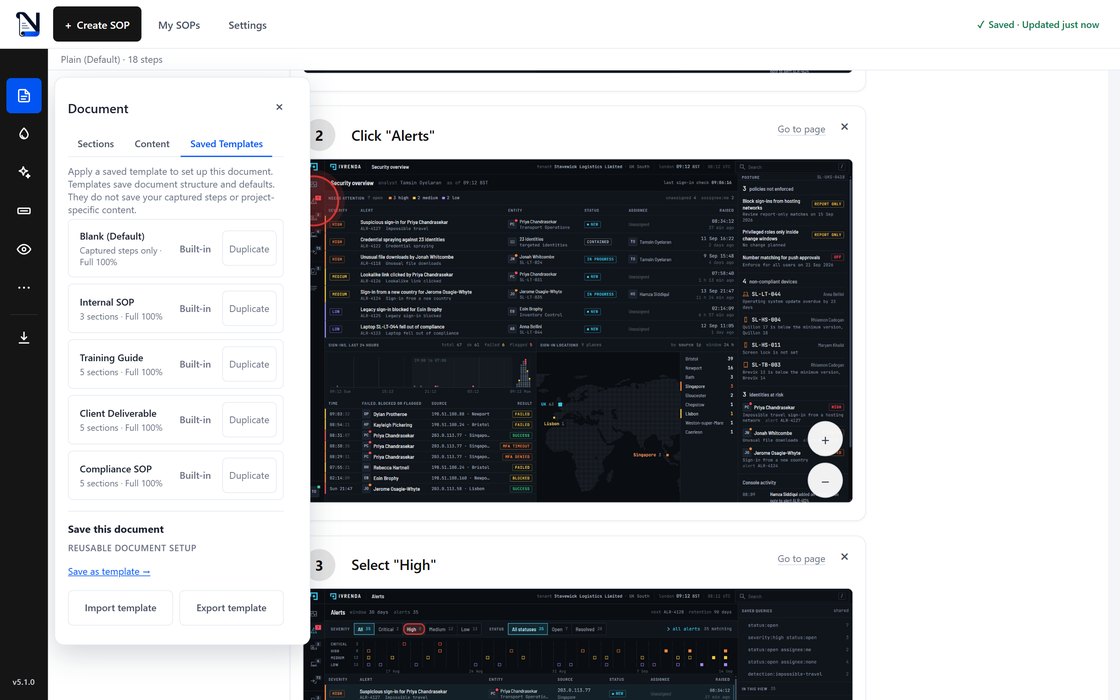
- A Style adds your logo, colours, fonts and a header treatment. It changes appearance only, never content.
- Save what you build as a reusable Style, or stay on the built-in Plain default, which cannot be overwritten.
Masks
Cover what must not be shared
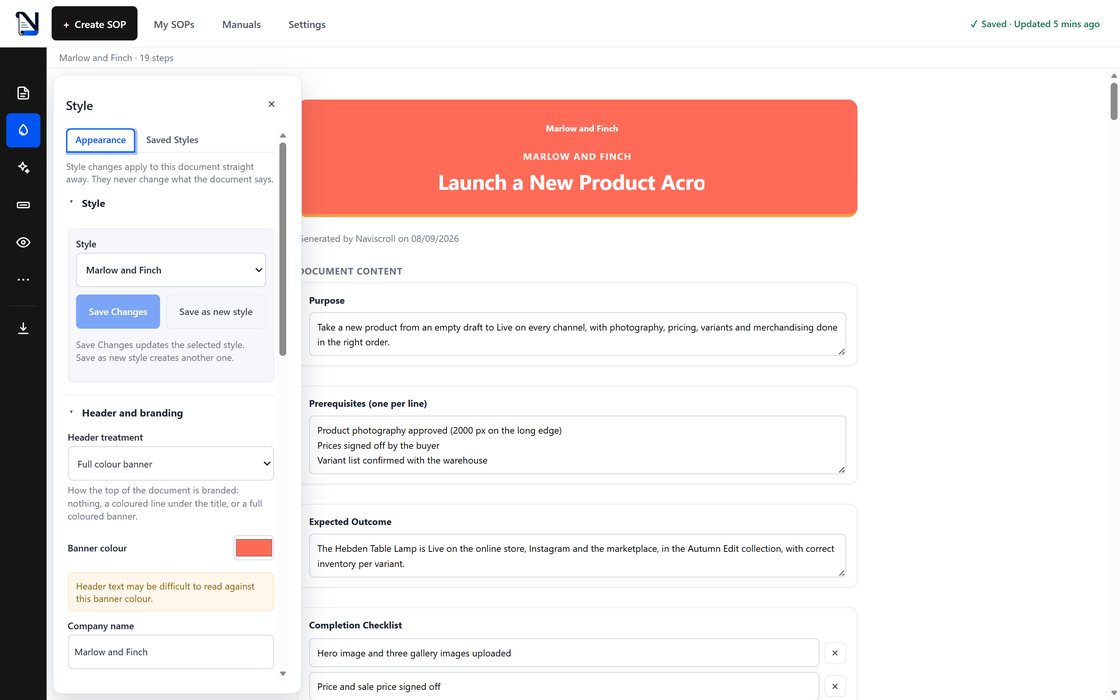
- Likely-sensitive fields are masked automatically; draw a solid block or a blur over anything else.
- Masks are baked into the pixels of every exported image.
- The mask options open beside the tool rail, like every other tool.
Export
Four formats of the same document
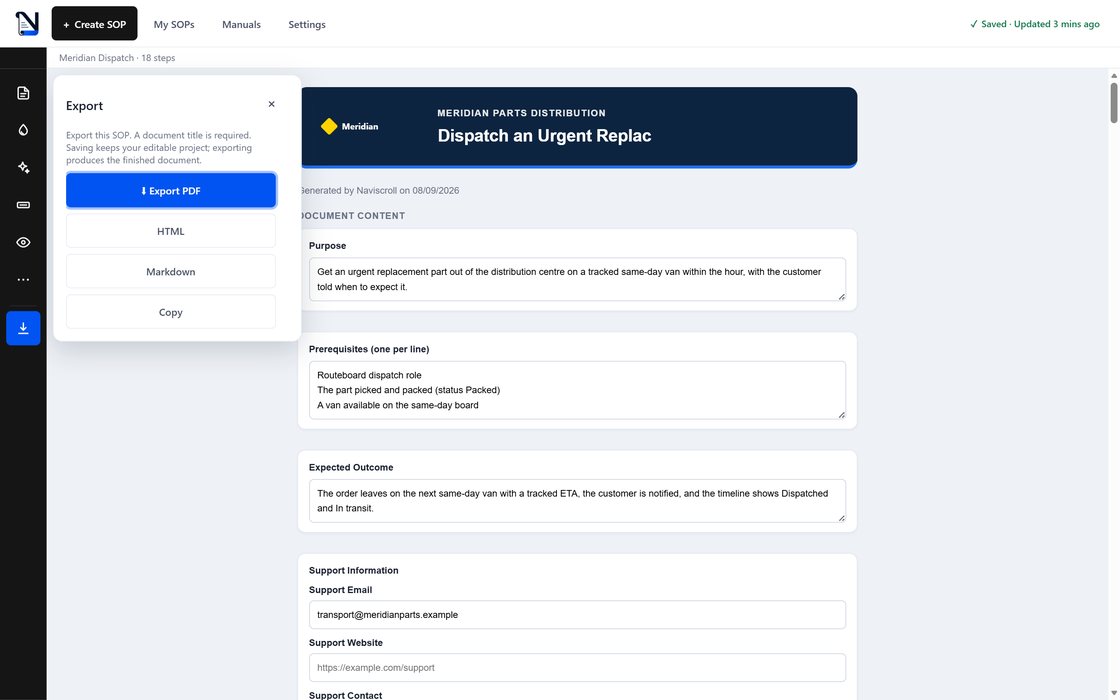
- PDF, a self-contained HTML page with zoomable screenshots, Markdown, or Copy.
- Masks are baked into the exported image pixels.
- HTML exports need no connection and load no external resources.
Library
Everything you have captured, on your machine
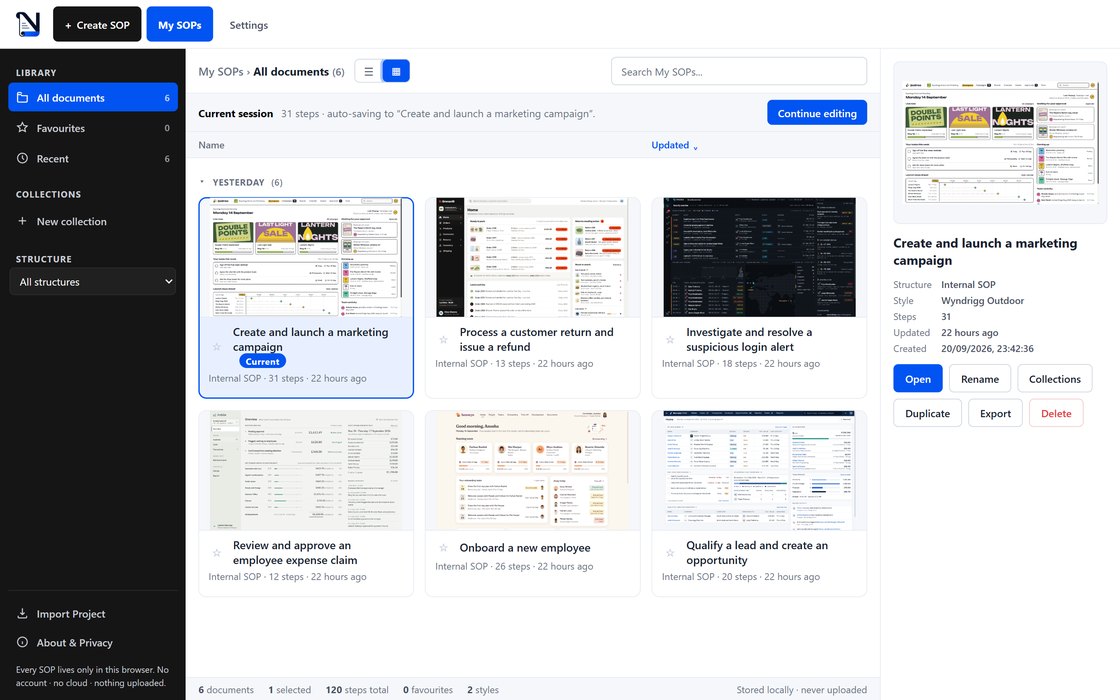
- My SOPs lists every procedure with its structure, step count and when you last changed it, sorted by name or by date, and the date view groups them under Today, Yesterday and Earlier this week.
- Search reaches titles, tags, step instructions and the text captured from each page, so a procedure can be found by something that happened inside it.
- Select one and the preview pane carries every action: open, rename, file it in a collection, duplicate, export or delete. A tile view is there too, and the one you choose is remembered.
- The library is held in your browser's storage on this machine, with no account and no server behind it. Each procedure is listed under the favicon of the page its capture started on.
Privacy
Local-first by design
Capture, screenshots, masking and the built-in document generator run entirely in your browser. Read the full explanation.
- Screenshots are stored in your browser and are never uploaded.
- Typed values are never stored: only that a field was filled in, never what you typed.
- Sensitive fields are masked, and masks are baked into exported images.
- There is no account and no server holding your library.
- AI drafting is off by default. When you opt in, only document text is sent, never screenshots.